How to automatically launch Smaart on a schedule (macOS)
Here you will find the steps required to launch Smaart on a schedule using macOS. This process may be helpful for SPL logging on a schedule, without an operator required. The procedure for doing this on Windows can be found here.
Preparing Smaart
First, if you are planning on using automated launch/close for SPL specifically, you'll need to set up Smaart Suite or Smaart SPL for logging. This can include:
- Configuring your device and input(s),
- Calibrating your input(s),
- Configuring custom metrics and/or alarms,
and finally, - Clicking "Start Logging" and closing the software. If Smaart is closed while logging, it will automatically start a new log upon startup.
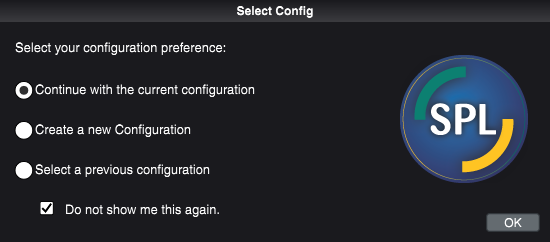
- It may also be helpful to check "Do not show me this again" on the automatic Select Config
To Open Smaart on a Schedule:
- Open Apple Calendar and create a New Event with an appropriate title such as "Open Smaart"
- Set the Day and Time that you wish to launch Smaart, and whether or not you want it to Repeat (for example Daily)
- Click the "Alert" droplist and instead of choosing a time selection, choose "Custom."
- In the next screen that appears, change the first dropdown to "Open File."
- Change the next dropdown to "Other," then browse to the location of the Smaart App (usually in applications) and select it.
- Set the alert time to "At the time of the event." Your event should look something like the one pictured below:

- Click OK.
Smaart is now set to launch with that calendar event. At the end of the event, make sure a technician closes the app so it can launch again at the next calendar event.
If you are looking to set up SPL logging to work with this functionality, please make sure that Smaart is calibrated and logging when setting up this process. Smaart will automatically start a new log file if it was logging when last closed.
Was this article helpful?
That’s Great!
Thank you for your feedback
Sorry! We couldn't be helpful
Thank you for your feedback
Feedback sent
We appreciate your effort and will try to fix the article