Editing an Installation's Machine Name
Have you ever activated Smaart on a device, then noticed that its Machine Name is incorrect, non-specific, or identical to another device on that license? If so, you can edit this attribute from within your license management account.
1. First, log into https://my.rationalacoustics.com and click "Software Licenses" from the sidebar.
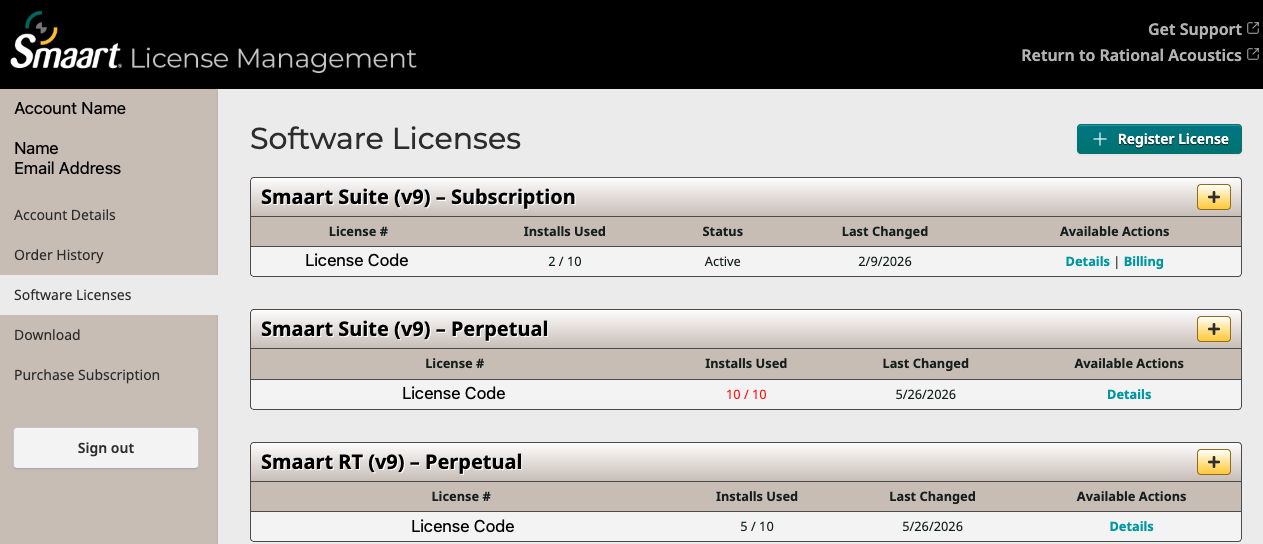
2. Click on your desired license.
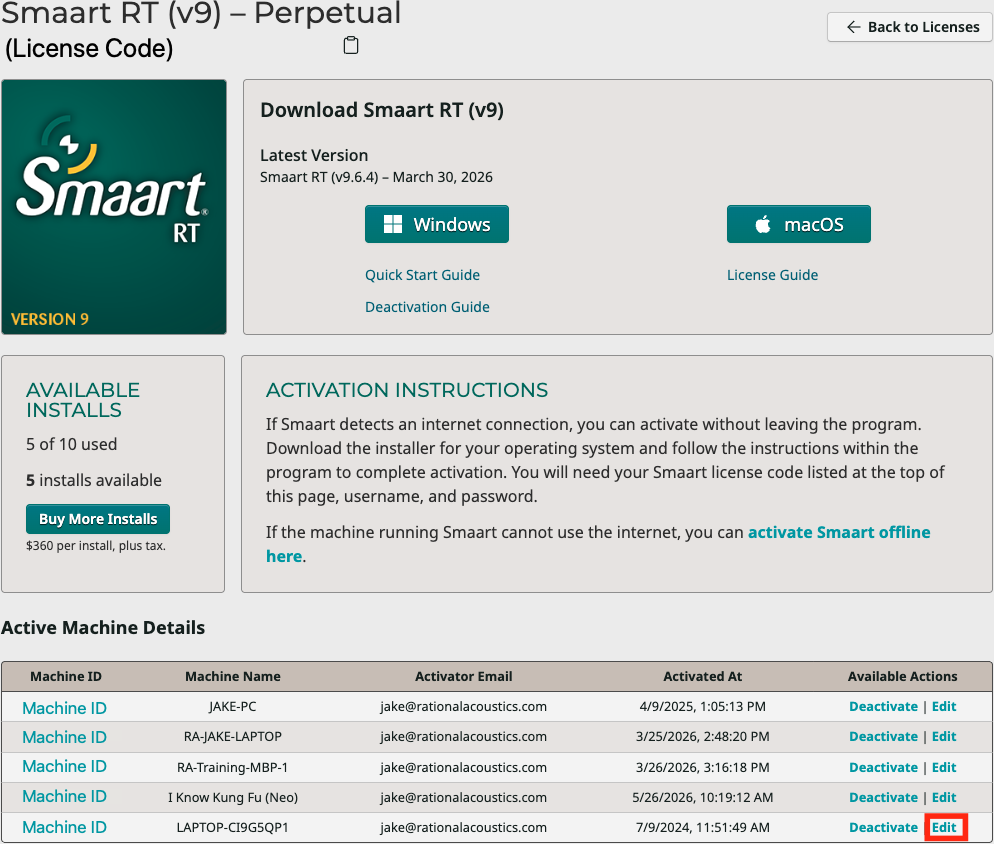
3. Next to each installation you will see both "Deactivate" and "Edit" options. Click "Edit" (outlined here in red). This brings you to a new page displaying various details about this specific activation (including Activation Code).
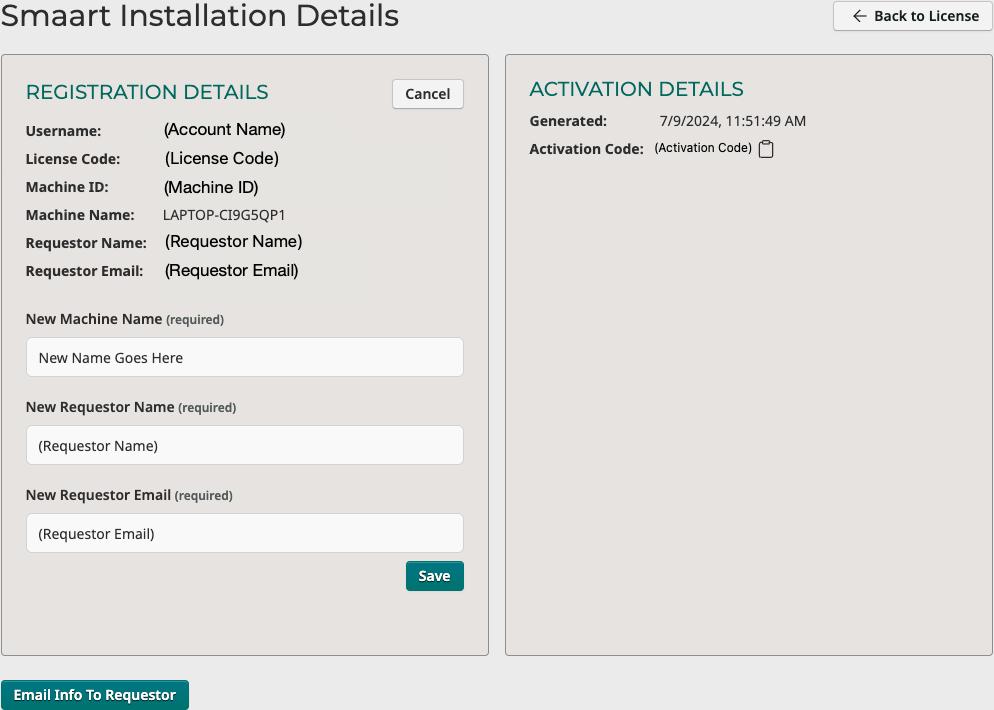
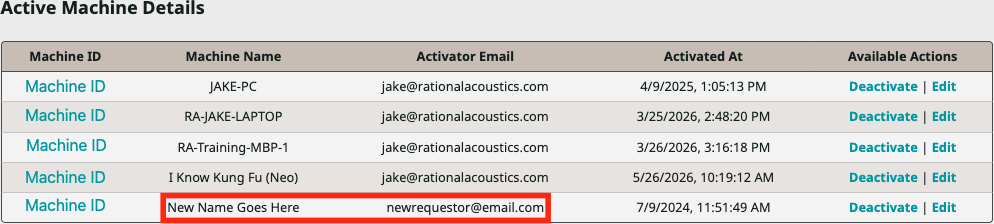
4. To edit your Machine Name, simply enter the desired name in the "New Machine Name" field. You can also change the "Requestor Name" and "Requestor Email" that your license management account displays under your license. Once you've made your changes, click "Save" to commit them. If you wish to notify the listed Requestor of the change, "Email Info To Requestor" will send them an email with all activation details displayed on this page.
Was this article helpful?
That’s Great!
Thank you for your feedback
Sorry! We couldn't be helpful
Thank you for your feedback
Feedback sent
We appreciate your effort and will try to fix the article